A single AI coding agent is slow. One model instance produces roughly 50 to 60 tokens per second, which is fine for a quick answer but too slow for multi-step engineering work. The practical fix is to run several agents at once, and that creates a new problem: keeping a pile of terminal sessions organized. After comparing the main options, cmux, an open-source macOS terminal built for AI coding agents, appears to be the cleanest choice for developers who prefer working in the command line. This guide walks through the basic architecture, how the tools compare, how to set up cmux for remote work, and what to watch out for when usage limits start to bite.
Models are APIs, and harnesses drive them
It helps to start with a simple mental model. An AI model is, at its core, an API: it receives a request from a client and returns a response. Clients come in a few forms:
- IDEs such as VS Code
- Code that calls the model over HTTP
- Terminal command-line tools
- Dedicated desktop apps
The software layer that talks to the model API and drives the work is called a harness. Examples include Claude Code CLI, Codex CLI, the Codex desktop app, Vercel’s Fx, DeepSeek Harness and OpenCode. Scaling a harness is straightforward: open more terminal windows, or run more concurrent threads inside an app.
The trouble starts once you have a dozen terminal windows open by hand. To keep multiple harnesses tidy, developers turn to harness orchestrators, tools that group and manage many agent sessions in one place.
Comparing the orchestrators
The main candidates are cmux, Herdr, Conductor and T3 Code, with the Codex desktop app as a useful point of comparison. Here is how they stack up in hands-on use.
| Tool | Strengths | Drawbacks |
|---|---|---|
| cmux | Vertical tabs, agent status indicators, inherited SSH sessions, image transfer | Terminal-first, so it may not suit people who want a full GUI |
| Herdr | Lightweight, organizes work into spaces and tabs | Command-K breaks the display; no managed SSH sessions |
| Conductor | Manages agent environments | Requires a new GitHub repository and a cloud VM before you can start |
| T3 Code | Workable for GUI-focused developers | Poor fit for a pure command-line workflow |
| Codex desktop app | Convenient SSH session management | Less suited to a terminal-only workflow |
Herdr’s idea is appealing. You create named spaces, such as “admin-work,” and put numbered tabs inside each one to run parallel terminal sessions. But pressing Command-K, the macOS shortcut many developers use by reflex to clear the screen, corrupts its text interface. Recovering means splitting windows, relaunching the program and killing broken shells. Years of muscle memory are hard to rewire. Herdr also treats an SSH session as an ordinary terminal process, so closing or interrupting that terminal drops the remote connection immediately.
Conductor’s problem is onboarding. Instead of opening an existing local folder, it asks you to authenticate with GitHub, create a new repository and set up a cloud VM first. A tool meant to boost productivity should not dictate your git workflow or force you to provision cloud infrastructure.
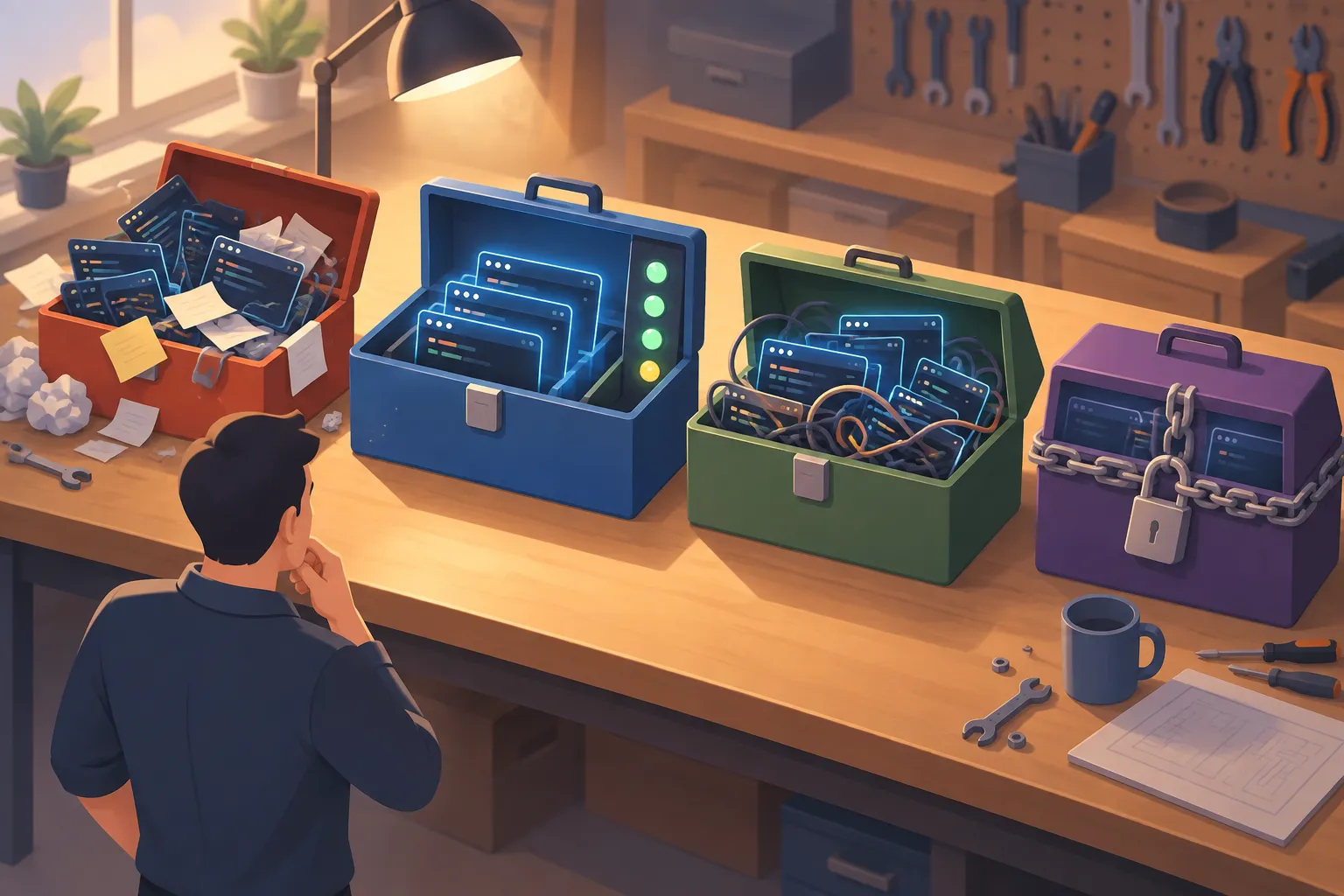
▲ Comparing agent orchestrators
Setting up cmux for remote agent work
cmux is built on libghostty, the library behind the GPU-accelerated Ghostty terminal, and written in native Swift and AppKit rather than Electron. It can also be controlled through a socket-based CLI. Its default layout looks busy, with several terminal panes, a mobile preview and browser views, but it can be trimmed down to a clean, minimal terminal.
Here is a practical setup for working on remote servers:
- Install the cmux desktop app.
- Open a host from your SSH configuration with
cmux ssh <host> --name <session-name>. The named remote session appears as its own workspace in the left sidebar. - Split the view with Command-D for a vertical split or Command-Shift-D for a horizontal one. Each new pane opens already logged into the same remote host, with no need to authenticate again. New tabs opened with Command-T inherit the connection too.
- Start an agent CLI such as Claude Code or Codex in the remote session.
- Press Command-B to collapse the sidebar and give the terminal the full screen.
- Turn off the embedded browser under the “Computer Use” section of the settings.
The sidebar shows each workspace with notification rings and status indicators, so you can tell at a glance whether an agent is busy or idle. Command-K clears the screen without breaking anything.
Disabling the embedded browser is a matter of focus. If your workflow already relies on a regular desktop browser, a browser inside the terminal mostly adds clutter. On the other hand, cmux exposes a wide range of settings, including custom base URLs, API keys and environment variables, which makes it easy to adapt.
Passing screenshots to a remote agent
The standout feature is image transfer. Drag a local screenshot into a cmux window where Claude Code is running on a remote server, and cmux sends the image across the SSH connection and hands it to the agent as “Image #1.” Ordinary terminals either paste a local file path or fail outright over SSH. In testing, Claude Code running on a remote machine correctly described the contents of a transferred screenshot, including the Claude mascot, an API billing line, terminal prompt text and elapsed run time. There is no need to copy files by hand or upload them to cloud storage.
Codex works the same way. Launch it in YOLO mode with codex --yolo, then type /voice to start a low-latency spoken conversation inside cmux.
Closing the laptop without stopping the work
When agents run on remote virtual machines, a sleeping laptop, a dead battery or a dropped Wi-Fi connection no longer kills the job. In one case, panes running htop, an interactive process monitor, and secondary agent workers kept going on the remote host while the MacBook lid stayed closed for six hours. When the lid opened again, every background task was still intact and running.

▲ Agent work continuing on a remote server
Usage limits, account gateways and the caveats
Running many agents quickly runs into usage caps. Pointing Claude Code and Codex straight at the default provider endpoints makes a single account’s limit the bottleneck. One workaround is an account gateway, a relay server that sits between the client tools and model providers such as Anthropic.
- The client sets its base URL to the gateway and authenticates with a gateway-specific API key.
- The gateway routes each request to one of several underlying accounts.
- Follow-up requests in the same conversation always go to the same account, a technique known as sticky sessions.
Sticky sessions matter because moving a conversation between accounts causes prompt cache misses, meaning the provider cannot reuse the stored earlier parts of the prompt, and breaks the continuity of the model’s thinking traces. With a gateway in place, you can spread load across accounts, add capacity by adding accounts and give collaborators token-based access.
There are two important caveats. First, rotating several accounts this way sits in a gray area under providers’ terms of service and usage guidelines, so check the terms before you try it. Second, the Claude Code desktop app’s remote features do not readily accept custom proxy gateways with your own base URL and authentication token. Desktop apps often lag behind CLI tools on this kind of configuration, so the CLI is the better fit for custom setups.
Pick your workflow first, then the tool
Running several agents in parallel is the starting point. The next step is choosing a tool that keeps them organized. For terminal-first developers, cmux looks like the most balanced option, while T3 Code is worth a look for those who prefer a GUI.
- Decide which agent CLIs you will use, such as Claude Code or Codex, and how many you want running at once.
- Move long-running jobs to a remote virtual machine and connect with
cmux ssh <host>so they no longer depend on your laptop staying awake. - Confirm that split panes and new tabs inherit the remote connection and that familiar shortcuts like Command-K still behave.
- Try dragging a screenshot into a remote agent session to pass along visual context.
- If you are considering a gateway that pools several accounts, read the provider’s terms of service first.