OpenAI’s latest ChatGPT changes bring workplace tools into voice conversations and put an assistant beside the page open in Chrome. The native desktop app adds faster voice options and broader computer controls. Together, the updates could reduce the need to switch between speaking, reading, and drafting, but each interface offers a different set of tools and permissions.
Voice connects speech to workplace tasks
ChatGPT Voice can now interact with connected services such as email, calendar, and Slack. In ChatGPT Work, users can start a voice session from the chat input and describe tasks involving documents, slide decks, websites, or spreadsheets. The expanded workflow also includes multi-step browser tasks directed by speech.
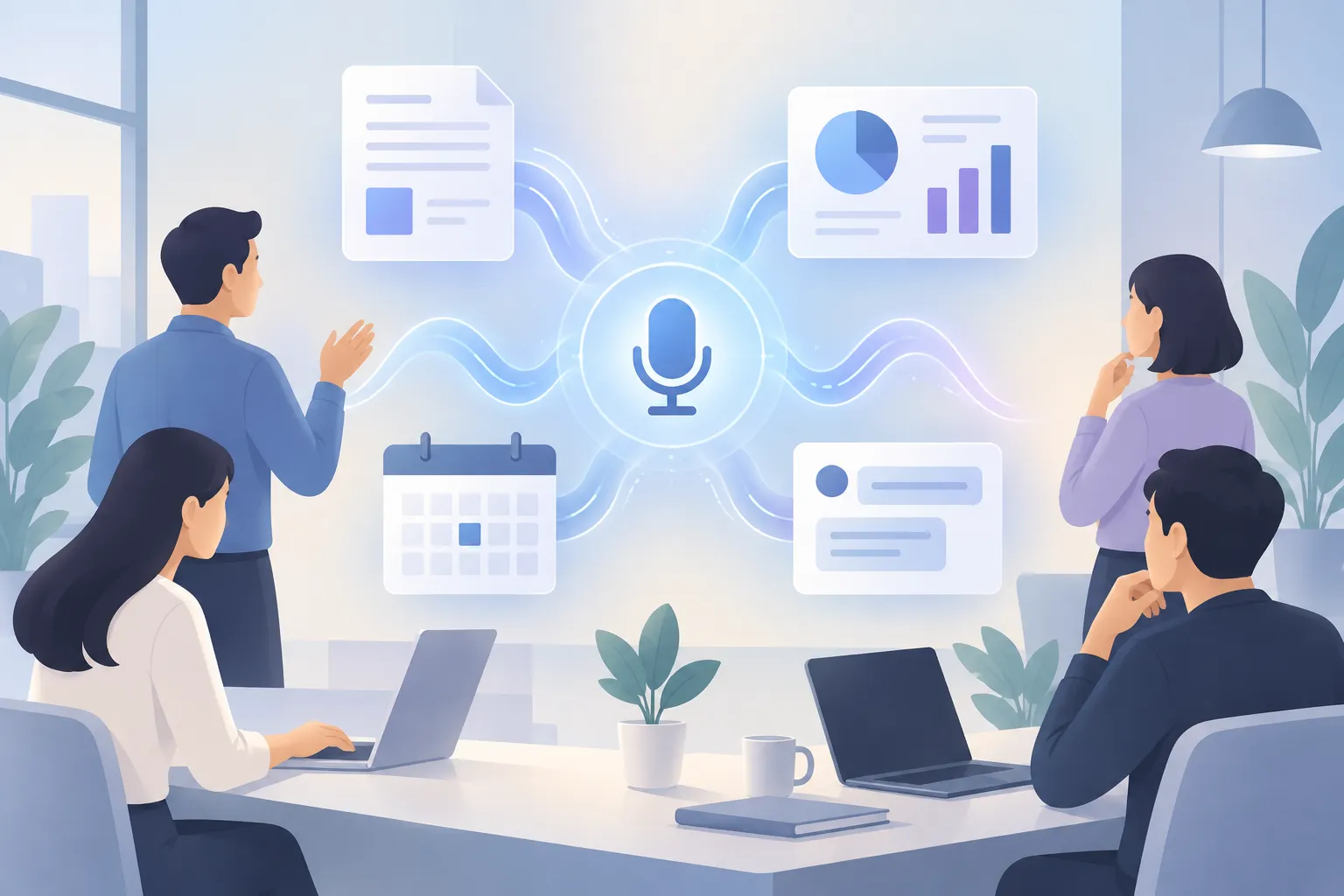
▲ Voice-linked workplace tools
Getting a connected voice workflow ready involves more than turning on the microphone. Voice settings offer Live, Advanced, and Standard modes. Live is the practical choice for everyday conversations, and the modes draw on account usage limits at different rates. Under Personalization’s Advanced settings, ChatGPT Voice, Web Search, Canvas, Library Search, and Connector Search enable the corresponding voice and connected-workspace functions. Without Connector Search, voice cannot query linked files or workplace services.
ChatGPT Work also has Cloud Browser controls for site permissions and cookies. Those settings matter when a task requires the assistant to navigate a website, but granting access should be a deliberate choice. ChatGPT Work runs on desktop web and mobile, and the controls covered here belong to the web workspace. Availability may differ by account, so users should check which options appear in their own settings.
The model menu offers GPT-6 Astra, GPT-6 Sol, and GPT-6 Luna. GPT-6 Astra fits autonomous, multi-step work, while GPT-6 Sol suits ordinary questions and drafting. GPT-6 Luna seems better used through developer APIs than picked directly in the ChatGPT Work interface. That distinction matters more than simply choosing the most capable-sounding name: the task and its usage cost should guide the choice.
The Chrome panel works from an open tab
The updated ChatGPT Chrome extension puts a model selector, plugin access, reasoning controls, and tab selection in a browser side panel. Its clearest use is turning page context into a draft without first copying the article into chat. In one example, the extension used an open Google AI article about Gemini 3.8 text-to-speech to produce a YouTube title, description, tags, and script.

▲ Drafting from an open browser tab
That result drew on more than the page. The assistant read the selected tab, used stored account memory, and retrieved a custom guide for the requested writing style. The resulting package included a hook, feature highlights, and two use cases. The quality of such a draft depends on what the account has saved, so results will vary from one user to another.
Chrome Computer Use is a separate, broader permission decision. Its controls offer an “Ask for approval” option or unrestricted access for browser actions and local files. Keeping approval requests on gives users a chance to review actions before the assistant takes them. Reading a selected page for a draft and allowing wider computer control should not be treated as the same level of access.
Desktop adds local controls and activity history
The native ChatGPT desktop app adds a “Switch to Light” voice option intended to make spoken exchanges faster. A playback slider reaches 1.5x speed, and faster delivery uses more credits. Desktop settings also provide reasoning-effort choices: Light, Medium, High, Extra High, Max, and Ultra. Separately, an “Enable Ultra effort” switch in General settings runs multiple agents in parallel on ambitious projects, which consumes usage limits more quickly.
The larger difference is access to the computer. Desktop permissions can allow file edits and terminal commands without individual approval under “Full access.” Users can also configure app-specific computer use, approval policies, and restrictions such as read-only execution. Computer History logs application activity, summarizes work sessions, and suggests reusable AI skills. Ambient desktop Pets, small on-screen companions, provide visual indications of background agent progress while other software is open.
These additions make the desktop app appear better suited to work involving local applications than the standard web interface. They also make permission choices more consequential. Neither activity logging nor unrestricted computer access is necessary just to try a faster voice conversation.
Plugins get a new home
The redesigned Plugins page groups tools under Popular, Small Business, Productivity, Creativity, and Developer Tools. Services such as Gmail, Google Drive, GitHub, Dropbox, Canva, and Stripe are ready to connect, and installed plugins can be called from the prompt box through a menu or an “@” mention. Users who need something custom have three routes:
| Option | What it does |
|---|---|
| Create plugin | Describe the tool in plain English and ChatGPT builds it |
| Upload plugin | Drag and drop a code package in .py, .go, or .zip format |
| Create app | Connect a Model Context Protocol (MCP) server with a server URL and OAuth settings |
MCP is an open standard that lets AI assistants connect to outside tools and data. Custom plugins and MCP apps require Developer Mode, found under Advanced Security in the Plugins settings, and the switch carries an elevated-risk warning.
Choose the workflow before enabling access
The update’s central shift is from asking ChatGPT for an answer toward letting it work with connected tools, an open browser tab, or local software. A useful starting sequence is:
- Identify the surface for the task. Use ChatGPT Work for a connected voice request, the Chrome side panel for drafting from selected tabs, or the desktop app when local application controls are needed. Confirm that the relevant feature appears in your interface.
- Enable only the connections the task needs. Check Voice and Connector Search for linked workplace information, and review Cloud Browser site and cookie permissions before web navigation.
- Match the model and effort to the work. GPT-6 Sol fits routine drafting; GPT-6 Astra is the suggested choice for autonomous tasks. Faster voice playback and Ultra effort may use more of the account’s allowance.
- Keep oversight proportional to access. Leave computer-use approval requests on unless broader access is necessary and trusted. Turn on Developer Mode only when a custom plugin or MCP integration is actually needed.
The most immediate change is convenience: speech can reach connected work, and an open tab can become the starting point for a tailored draft. Check availability and permissions first, then expand access only when a specific workflow calls for it.